
Why Your Controller Feels Slow – Measuring and Fixing Gamepad Input Lag by Connection Type
Table of Contents
The shot registered. You’re sure of it. The animation started, the crosshair was centred, the trigger went down, and then the game disagreed with you half a frame later. That gap between physical input and on-screen response is input lag, and on a controller, it’s not a single value. It’s a stack of values from several sources, and fixing the wrong one makes no difference.
Most “fix your controller lag” guides treat input lag as a single problem with a single solution. It isn’t. A Bluetooth controller averaging 16ms but spiking to 90ms under Wi-Fi interference is a completely different problem from a wired controller running at 3ms with a USB polling rate throttled by Windows’ power plan.
The solutions are different, the tests are different, and the urgency is different for competitive play. This guide covers all three connection types with actual numbers and the two fixes that most articles don’t mention at all.
Gamepad input lag is the total measured delay between a physical button press on a controller and the corresponding response reaching the game engine. It is composed of hardware processing time, connection protocol latency, USB polling interval, and driver overhead, all of which vary independently depending on connection type and system configuration.
This works best for PC gamers on Windows 10 or 11 using Xbox Series X|S or PS5 DualSense controllers over USB, Bluetooth, or 2.4GHz wireless dongle. It won’t address display lag from your monitor, in-game frame timing issues, or network latency; those are separate problem categories.
The Real Latency Numbers by Connection Type
Gamepad input lag differs dramatically depending on how the controller is connected, and the difference is large enough to matter in competitive play.
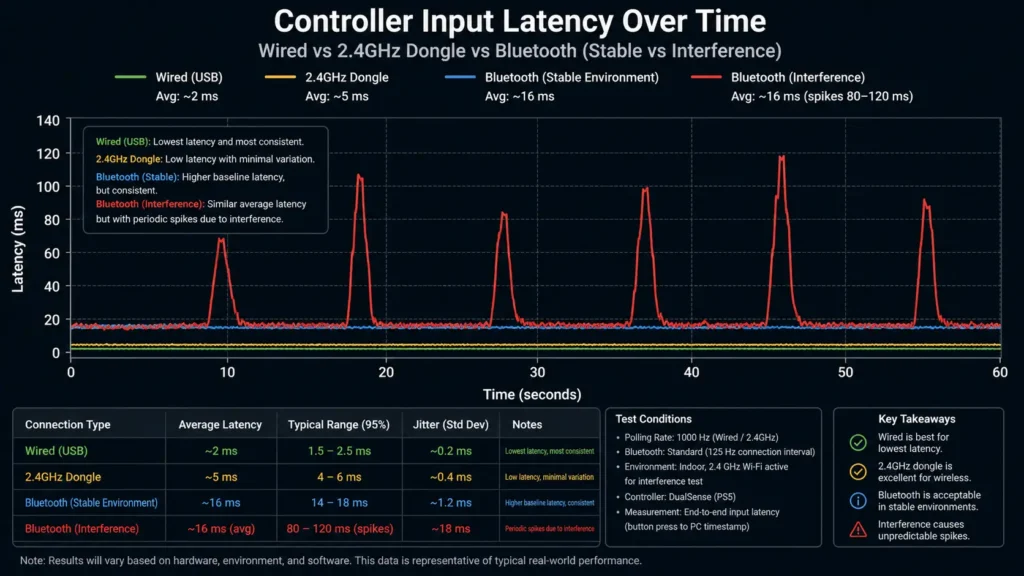
According to the input lag. Science latency database (cited by Turtle Beach, 2025), wired USB controllers average just 1.0–3.0ms of input lag at their hardware floor. 2.4GHz wireless dongles like the Xbox Wireless Adapter or similar proprietary solutions from Sony and third-party manufacturers come in at 3–6ms, close enough to wired that no human reaction time advantage exists between them. Standard Bluetooth sits at 16ms or higher as a baseline average.
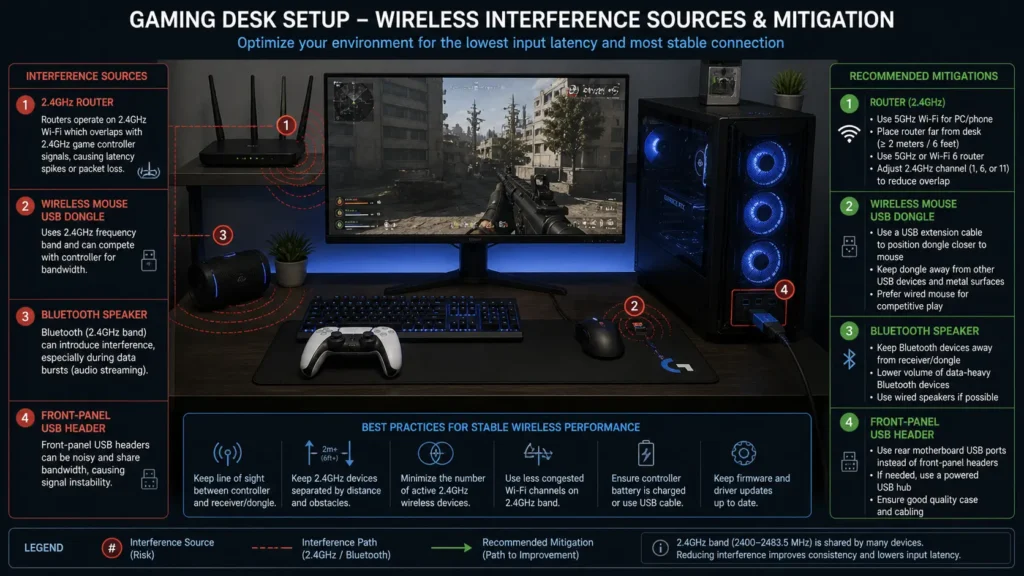
That baseline Bluetooth number sounds acceptable until you add interference. Xbox Bluetooth specifically is documented in hardware testing communities to spike into 80–120ms bursts when operating near 2.4GHz Wi-Fi routers or wireless mice sharing the same frequency band.
A single overlooked interference source, a router one room over, a 2.4GHz wireless keyboard on the same desk, can push a controller that averages 16ms into intermittent spikes ten times that value. That’s not a competitive disadvantage. That’s genuinely broken.
The connection type hierarchy, from fastest to slowest for competitive use: wired USB → 2.4GHz proprietary dongle → Bluetooth with a clean RF environment → Bluetooth under interference.
What most guides skip is that average latency and latency consistency are two separate performance metrics, and consistency often matters more for competitive play.
A controller averaging 8ms but spiking to 40ms on every fifth input produces worse competitive outcomes than a controller averaging 12ms with zero spikes because the human nervous system adapts to a consistent delay far more readily than to an unpredictable one. Your aim routine is built on expectation. Variance destroys it.
How to Measure Your Controller’s Actual Input Lag
Before fixing anything, measure first. Adjusting settings without a baseline number is identical to adjusting deadzone without reading the raw axis value; you’re changing things in unknown directions.
To test your gamepad’s input lag in a browser, follow these steps:
- Connect your controller via the connection type you normally use.
- Open Chrome on Windows and navigate to gpadtester.org.
- Press any button to activate controller detection.
- Navigate to the Latency Test section of the tool.
- Follow on-screen prompts — the tool measures your polling rate and derives a latency grade.
- Run the test three times and average the results to account for momentary variance.
- Note both your average latency value and whether any spike readings appear in the output.
The GPad Tester latency grade scale: under 8ms is classified as excellent, 16–30ms as noticeable but acceptable for casual play, and above 30ms as problematic for any reaction-dependent game.
For reference against real benchmarks, gamepadla.com maintains a freely searchable database of controller-specific latency results by model. It’s worth checking your exact controller model there against the browser test reading to verify the browser tool’s accuracy.
Here’s the thing: polling rate and input lag are not the same number, but they’re related. Polling rate is how many times per second the controller reports its state to the host system. A polling rate of 125Hz means a report every 8ms, so if your controller polls at 125Hz, the worst-case input lag from polling alone is 8ms, before any processing or transmission overhead is added.
Most wired controllers run at 250Hz or 1000Hz. Most Bluetooth implementations run at 125Hz. That difference alone, before interference, accounts for 6–7ms of structural latency difference between connection types.
READ MORE → How to use a gamepad tester online
The Two Fixes Most Guides Completely Miss
Both of these take under five minutes combined. Neither requires hardware changes. And almost no mainstream guide covers either of them.
Fix 1 – Switch Windows Power Plan to High Performance
Windows’ default “Balanced” power plan actively throttles USB polling intervals to save energy. On battery or under thermal load, this throttling can add 4–8ms of avoidable latency on top of whatever your controller hardware itself produces, and it applies to wired connections, not just wireless. A wired controller that should be delivering 2ms can perform at 8–10ms under the Balanced plan.
To change Windows power plan: Press Win + R → type powercfg.cpl → select “High Performance” or “Ultimate Performance” if available. On Windows 11, navigate to Settings → Power → Power Mode → Best Performance. The change takes effect immediately with no restart.
Or maybe I should say: this is the single highest-value fix available to wired controller users, takes ten seconds to apply, and is mentioned in almost none of the top-ranking articles on this topic. Check it before anything else.
Fix 2 – Address Bluetooth Interference Directly
Bluetooth operates at 2.4GHz and uses frequency hopping to avoid interference, but a saturated 2.4GHz environment can still cause the kind of spike behaviour described in the latency numbers section above. The steps to reduce this are specific and ordered by impact.
To reduce Bluetooth interference causing input lag spikes:
- Relocate or switch off 2.4GHz Wi-Fi devices within 2 metres of your PC, particularly routers, access points, and USB wireless adapters for mice and keyboards.
- If your router supports it, move your PC’s Wi-Fi connection to the 5GHz band. This removes the most common interference source from the 2.4GHz band entirely.
- Plug your controller’s Bluetooth receiver or PC dongle into a rear USB port directly on the motherboard rather than a front-panel header. Front-panel headers often have weaker shielding against internal interference.
- Disable Bluetooth devices you’re not actively using via Device Manager to reduce the number of devices competing for channel time.
The most impactful single change for spike reduction is moving to 5GHz Wi-Fi. Users who’ve tried this in isolation report eliminating the 80–120ms spike bursts entirely in a clean 2.4GHz environment, while seeing no change in average baseline latency, confirming that spikes and baseline are independent phenomena with independent causes.
Wired vs. Wireless Controller Latency – Which Actually Matters for Your Play Style
Wired vs. 2.4GHz dongle: A wired connection is better suited for competitive play where zero latency variance is the priority, because it eliminates all RF environment variables and runs at 1.0–3.0ms with consistent polling.
A 2.4GHz dongle performs better when desk cable management is a concern or the controller needs range, because at 3–6ms it’s close enough to wired that human perception cannot distinguish the difference in a standard play scenario. The key difference is environmental stability: wired is immune to RF interference; 2.4GHz is not, though it’s significantly more resistant than Bluetooth.
2.4GHz dongle vs. Bluetooth: For competitive gaming, a 2.4GHz proprietary dongle is unambiguously faster and more consistent than Bluetooth at every measured point in the available data. The Xbox Wireless Adapter specifically brings Xbox controller latency to 2–8ms, measured and documented in the gamepadla.com database, compared to the 16ms Bluetooth baseline and the spike behaviour described above.
If you’re currently on Bluetooth and own a compatible controller, the adapter costs approximately $25 USD and is the single highest-value hardware upgrade available for wireless competitive controller users.
Quick Comparison
| Connection | Best For | Key Benefit | Limitation |
| Wired USB | Competitive play; zero variance priority | 1–3ms latency; immune to RF interference | Cable management; movement restriction |
| 2.4GHz Dongle | Wireless play without Bluetooth drawbacks | 3–6ms latency; strong interference resistance | Dongle required; controller-specific |
| Bluetooth (stable) | Casual play; couch distance; broad compatibility | No dongle needed; works with any Bluetooth device | 16ms+ baseline; vulnerable to interference spikes |
| Bluetooth (interference) | Not recommended for competitive use | — | 80–120ms spikes documented under 2.4GHz congestion |
Look, if you’re playing Valorant or Warzone on Bluetooth because your Xbox controller supports it natively on Windows, here’s what actually works: the $25 Xbox Wireless Adapter eliminates your spike problem and drops your average latency by approximately 10ms, both of which are measurable competitive improvements. The cable is also a valid answer. Bluetooth for competitive play on PC is not.
LEARN MORE → Wired vs. Bluetooth vs. 2.4GHz latency benchmarks
READ MORE → How to fix controller stick drift
I’ve Seen Conflicting Data – Here’s My Read
I’ve seen conflicting figures on whether the Windows Power Plan fix affects USB-connected controllers meaningfully. Some hardware testers report the Balanced plan adding only 1–2ms; others report 4–8ms on the same hardware under thermal throttling.
My read: the impact is variable and hardware-dependent, but it’s always negative, never positive, and takes ten seconds to eliminate, which makes the risk/reward case for switching to High Performance completely clear regardless of your specific system.
Some competitive players argue Bluetooth is fine if you’re not in a 2.4GHz-congested environment and that the wired-vs-wireless debate is overblown for controller gaming versus mouse gaming. That’s defensible for casual play, the human reaction time threshold for perceiving 16ms is close to the physiological detection floor, and many players don’t notice the baseline difference.
But the spike argument is not about perception thresholds. Spikes of 80–120ms are clearly perceptible to any player, and they occur unpredictably, which is categorically worse than a stable,e higher-latency connection.
Anyway, the data is what it is. A wired controller or a 2.4GHz dongle eliminates both the spike risk and the baseline disadvantage simultaneously.
Frequently Asked Questions
Q: What’s the best connection type for competitive controller gaming?
A: Wired USB is fastest at 1–3ms with zero interference risk. If you prefer wireless, a 2.4GHz proprietary dongle like the Xbox Wireless Adapter delivers 3–6ms with near-wired consistency. Standard Bluetooth averages 16ms and is vulnerable to spike interference in typical home environments.
Q: How do I test my gamepad’s input lag without special equipment?
A: Navigate to gpadtester.org in Chrome, connect your controller, and run the latency test. It measures your polling rate and grades your latency under 8ms as excellent, above 30ms as problematic for reaction-dependent games. Cross-reference with your controller’s model on gamepadla.com for verification.
Q: Why does my Bluetooth controller spike to high latency sometimes?
A: 2.4GHz interference from Wi-Fi routers, wireless mice, or other Bluetooth devices causes burst spikes of 80–120ms in Xbox Bluetooth controllers specifically. Move to 5GHz Wi-Fi, reduce 2.4GHz devices near your PC, and connect dongles to rear USB ports to reduce spike frequency.
Q: Should I switch from Bluetooth to wired for competitive FPS games?
A: Yes, if you’re currently experiencing latency spikes or playing at a level where 10–15ms matters. Wired USB eliminates interference and cuts your average latency to 1–3ms. If cables are impractical, the Xbox Wireless Adapter at ~$25 achieves 3–6ms wirelessly.
Q: When should I change my Windows Power Plan to fix controller input lag?
A: Immediately, regardless of your connection type. The default Balanced power plan throttles USB polling intervals and can add 4–8ms of avoidable latency to wired connections. Switch to High Performance via powercfg.cpl, it takes ten seconds and affects all USB-connected input devices immediately.
This guide covers gamepad input lag for Xbox Series X|S and PS5 DualSense controllers on Windows 10 and 11. It does not address display lag from monitors or TVs, game engine frame timing, network latency in online games, or controller latency on PS5 and Xbox consoles directly — those systems use proprietary wireless protocols with different latency profiles from the PC stack covered here.