
What Controller Deadzone Actually Is and How to Set It Correctly for Your Platform
Table of Contents
If your aim feels floaty on a controller but snappy on keyboard and mouse, deadzone is almost certainly part of the explanation. Not all of it. But enough that fixing it is worth thirty minutes of your time before you blame the hardware.
The frustrating part isn’t adjusting the setting; it’s that most guides hand you a slider location without explaining that there are actually three distinct deadzone types, each controlling something different, and that stacking them incorrectly makes everything worse than leaving it at default. That’s what this guide fixes first.
A controller deadzone is a configurable input tolerance zone around the analog stick’s resting centre position. Any stick movement that falls within that zone is interpreted as zero by the game engine, no input registered, no movement output.
It exists to prevent phantom drift from reaching the game, but if set too wide, it swallows the first portion of every intentional input and makes fine-aim adjustments feel like they hit a wall before they start.
This works best for PS5 DualSense and Xbox Series X|S users playing on PC or console. It won’t resolve input issues caused by significant hardware drift, stick damage, or controller firmware faults.
The Three Deadzone Types Most Guides Never Distinguish
Deadzone is not one setting. Depending on your platform and configuration tool, you may be looking at three separate controls that interact with each other, and confusing them is the most common source of “I adjusted deadzone, and it got worse.”
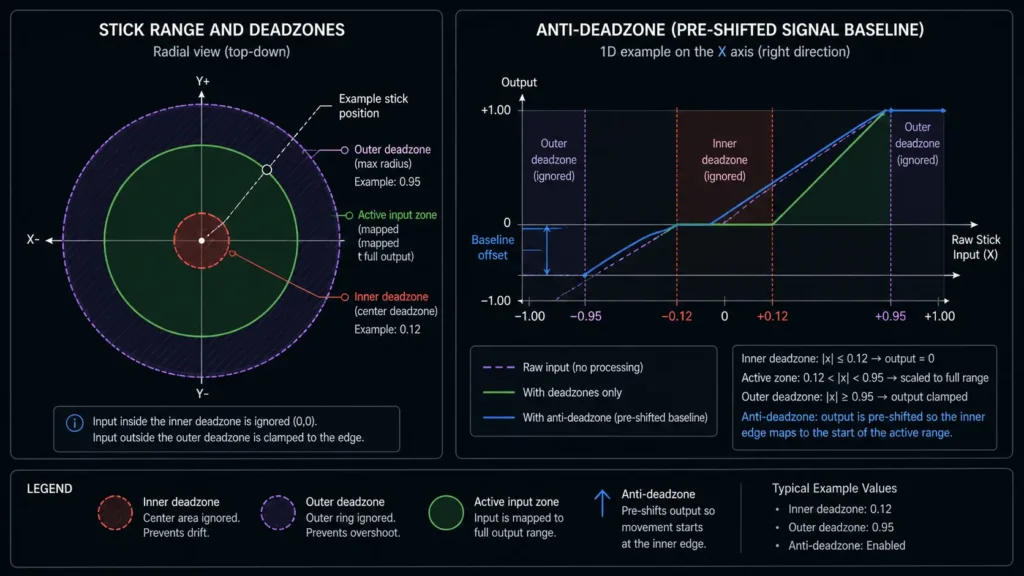
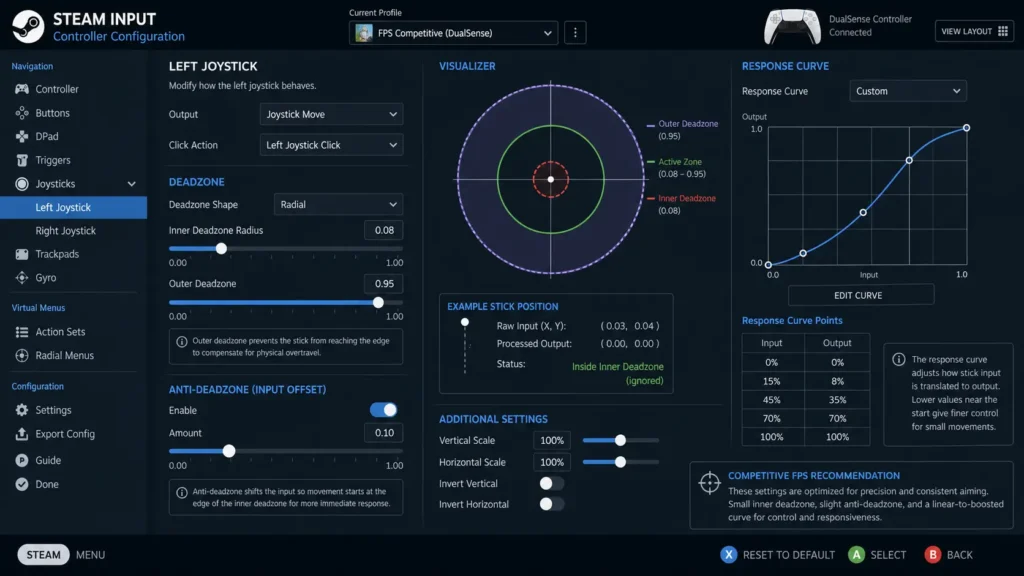
Inner deadzone is what most people mean when they say “deadzone.” It’s the tolerance zone at the stick’s resting centre, the radius within which all input reads as zero. Increase it to suppress drift. Decrease it to register smaller, more precise movements near the centre.
Outer deadzone, sometimes called maxzone, controls the opposite end. It defines the input value at which the game engine interprets the stick as fully tilted. Reducing the outer deadzone means you reach “maximum” stick output before physically pushing the stick to its physical limit.
This compresses your usable travel range, which some players prefer for faster response on flicks but which reduces precision at partial-tilt positions.
Anti-deadzone is the least understood of the three. Games like Warzone, Apex Legends, and Fortnite build their own inner deadzone into the game engine, independent of your hardware or driver settings.
Anti-deadzone compensates for that by pre-inflating your output signal before it reaches the game, effectively filling the gap the game’s own deadzone would otherwise cut out. Without it, you’re stacking your hardware deadzone on top of the game’s software deadzone, producing a combined dead zone far larger than either setting suggests individually.
Or maybe I should say it this way: if your inner deadzone reads 0.10 in Steam Input and Warzone has a built-in deadzone of 0.15, you’re not operating at 0.10, you’re operating at roughly 0.25 before any movement registers in the game at all. That’s why your aim feels sluggish even after you’ve already reduced the slider.
How to Read Your Controller Deadzone Before Touching Any Settings
Adjusting deadzone without a baseline is guesswork. The first step is reading your controller’s raw axis values at rest, which your hardware actually sends before any software processing, so you’re adjusting toward a real number, not a gut feeling.
To read your controller’s raw deadzone values, follow these steps:
- Connect your controller via USB or Bluetooth to a Windows PC.
- Open Chrome (not Firefox – the Gamepad API is partially unsupported there).
- Navigate to online gamepad tester and press any button to activate detection.
- Set the controller flat on a desk and leave it completely untouched.
- Read the X and Y axis values for each stick at full rest.
- Note the highest sustained deviation from 0.0 across a ten-second observation window.
- That number is your hardware’s actual resting offset – your inner deadzone should sit slightly above it.
Here’s the thing: most Xbox Series controllers ship with a hardware deadzone of roughly 7–10% at the potentiometer level.
But according to Switchblade Gaming’s verified PC controller testing (April 2026, conducted on Windows 11 with an Xbox Series X controller), the Windows XInput driver stacks an additional software processing layer on top of this, inflating the effective deadzone experienced in-game to approximately 25–30% of total stick travel.
That’s not your controller. That’s a driver artifact, and it’s what most players spend months assuming is a hardware limitation.
Fixing the XInput inflation specifically requires bypassing XInput. Steam Input, DS4Windows, and the Xbox Accessories app all sit above the XInput layer and can apply their own deadzone values, effectively replacing the inflated driver default rather than adding to it.
Running your controller through any of those tools rather than raw XInput is the first structural fix before you change a single slider value.
READ MORE → How to use a gamepad tester online to diagnose stick drift
Platform-Specific Deadzone Adjustment – Where to Find Each Setting
Different platforms expose different levels of deadzone control. Knowing where to look saves significant time.
PC: Steam Input (Recommended for Most Users)
Steam Input is free, doesn’t require a third-party download, and provides per-game deadzone control with numeric precision.
Right-click any game in your Steam library → Controller Configuration → select your device → Additional Settings. The left and right stick sections each expose inner deadzone radius, outer deadzone, and response curve independently.
The deadzone slider in Steam Input operates on a 0–1 scale. A value of 0.10 means 10% of the stick’s physical range registers as zero. For a hardware resting offset of ±0.04 (common on a well-maintained DualSense or Xbox controller), a Steam Input inner deadzone of 0.07–0.08 provides safe drift suppression with minimal input swallowing.
PC: Xbox Accessories App (Xbox Elite and Series Controllers)
Microsoft’s Xbox Accessories app (available free from the Microsoft Store, requires Windows 10 or 11) allows direct stick deadzone and response curve adjustment for Xbox Elite Series 2 and Xbox Series X|S controllers.
Profiles save to the controller’s internal memory, meaning the settings persist even when you disconnect and use the pad on console. Navigation: open app → select your controller → Configure → Stick configuration → adjust inner and outer deadzone sliders.
The sliders here use a percentage display rather than a 0–1 decimal. A 10% inner deadzone in Xbox Accessories maps to roughly 0.10 in Steam Input. The two tools can be used together. Xbox Accessories sets a hardware-level baseline profile, and Steam Input applies game-specific adjustments on top.
PC: DS4Windows (PS4 and PS5 Controllers)
DS4Windows is the standard third-party solution for PS4 DualShock 4 and PS5 DualSense users on PC who want full deadzone control. After installation, navigate to Profiles → Edit → Other Settings → Left/Right Stick Deadzone.
DS4Windows exposes both an anti-deadzone slider (labelled “Anti-Dead Zone”) and a standard inner deadzone, making it one of the few tools that makes the anti-deadzone concept operationally accessible without requiring manual config editing.
Quick note: DS4Windows only functions correctly when your DualSense is connected in DS4 emulation mode. If you’ve configured the controller as a native DualSense device in Windows (visible via Device Manager), DS4Windows may not apply its deadzone overrides. Switch to DS4 emulation mode in DS4Windows’ output settings before adjusting.
Console: PS5 and Xbox System Settings
Sony’s native deadzone control on PS5 sits under Settings → Accessories → Controllers → Stick Sensitivity Type → Custom. The slider is coarse, doesn’t expose numeric values, and doesn’t distinguish between inner and outer deadzones, making it less useful for precise calibration.
Per-game settings in titles like Warzone, Apex Legends, and Fortnite are more granular and should be adjusted there before touching the system slider.
Xbox Series consoles expose minimal native deadzone control outside of the Xbox Accessories app (which requires a PC connection to edit profiles). Most competitive console players adjust deadzone through in-game settings rather than at the system level.
Steam Input vs. DS4Windows
Steam Input is better suited for most PC gamers because it’s already integrated with the game library, requires no separate installation, and handles per-game profiles automatically.
DS4Windows works better for DualSense users specifically who want fine anti-deadzone control or who play games outside of Steam, because it operates system-wide rather than per-application. The key difference is scope: Steam Input is game-by-game; DS4Windows is controller-wide.
Quick Comparison
| Tool | Best For | Key Benefit | Limitation |
| Steam Input | PC gamers with any controller playing Steam titles | Per-game profiles, numeric precision, and free | Steam games only; doesn’t work system-wide |
| Xbox Accessories App | Xbox Elite / Series X|S users | Profiles save to controller memory; works on console too | Xbox controllers only; sliders show %, not decimal |
| DS4Windows | DualSense / DualShock 4 users on PC | Anti-deadzone control; system-wide | Requires DS4 emulation mode; separate install |
| In-game settings | Console players; quick competitive tuning | No extra tools needed; game-specific | Coarse sliders; no raw numeric feedback |
LEARN MORE → Switchblade Gaming controller testing proves XInput driver deadzone inflation on Windows 11
What Numbers to Actually Use – by Game Genre
I’ve seen conflicting advice across Reddit threads and YouTube channels on this. Some sources say “set deadzone to zero for maximum precision,” others insist anything below 0.05 causes accidental drift in inputs.
My read: the “set it to zero” camp is technically correct for controllers with zero measurable hardware drift, and completely wrong for everyone else, which is most people with controllers past four months of regular daily use.
Competitive FPS (Warzone, Apex, Fortnite): Target an inner deadzone of 0.04–0.08 in Steam Input or DS4Windows, after first reading your hardware resting offset from a browser tester.
Set anti-deadzone to compensate for the game’s own built-in deadzone. Warzone’s default is approximately 0.13 on PC; Apex Legends sits around 0.10–0.12. Without anti-deadzone compensation, those values are added directly on top of your hardware deadzone.
Open-world and RPG titles: Deadzone sensitivity matters far less here than in competitive shooters. Default settings or light adjustment to 0.08–0.12 inner deadzone is generally fine.
Outer deadzone compression is more relevant, as a slight reduction helps with vehicle control and camera panning, where full-range input precision matters more than micro-aim.
Platform games and fighting games: The most important setting here is not the inner deadzone but the response curve. A linear curve means the first 10% of stick travel produces 10% output.
An exponential curve (the default in most platform games) produces less output in the first half of the range and accelerates toward full travel, which helps with precise platforming movement but slows initial response. Deadzone values are less critical than getting the curve type correct for the genre.
Look, if you’re a Warzone player who’s adjusted sensitivity thirty times and still feels behind on gunfights, here’s what actually works:
- Read your resting offset from gamepadtester.net
- Set Steam Input inner deadzone to your offset plus 0.03
- Enable anti-deadzone compensation for Warzone specifically.
- Then leave sensitivity alone for two full sessions before evaluating.
Sensitivity and deadzone interact; changing one without the other produces a confounded result that tells you nothing.
READ MORE→ Fix Gamepad Drift Guide
Some competitive players argue that deadzone settings should be left at zero and any drift suppressed purely through hardware repair. That’s valid if you’ve already done the Hall effect module upgrade and your hardware drift is genuinely at 0.0.
But for everyone else, who is most people, a small non-zero inner deadzone is not a performance compromise. It’s just correct calibration for real hardware.
Frequently Asked Questions
Q: What’s the best deadzone setting for FPS games on a controller?
A: Read your hardware resting offset first using a browser gamepad tester. Set your inner deadzone to that value plus 0.03. For Warzone and Apex on PC, also enable anti-deadzone compensation in Steam Input or DS4Windows to account for the game’s own built-in deadzone.
Q: How do I adjust the deadzone on an Xbox controller on PC?
A: Use Steam Input (right-click game → Controller Configuration → Additional Settings) for Steam titles, or download the Xbox Accessories app from the Microsoft Store for hardware-level profile editing. Both provide numeric deadzone control without requiring third-party software.
Q: Should I set my controller’s deadzone to zero for better aim?
A: Only if your controller’s resting axis values measure at exactly 0.0 on a browser gamepad tester. For any controller with measurable drift, which includes most controllers past four months of regular play, a deadzone of zero will pass phantom movement directly to the game engine.
Q: Why does my controller still feel slow after reducing deadzone?
A: You’re likely dealing with stacked deadzones: your hardware deadzone, plus the driver layer (XInput adds 15–20% on Windows), plus the game’s own built-in software deadzone. Fix the driver layer by routing your controller through Steam Input or DS4Windows, then apply anti-deadzone to compensate for the game’s internal value.
Q: When should I adjust deadzone versus just changing sensitivity?
A: Adjust the deadzone when small stick movements near the centre feel unresponsive or non-existent; that’s a deadzone problem. Adjust sensitivity when the overall speed or scale of movement feels wrong, but small inputs are registering. They control different things, and confusing them makes both worse.
This guide covers controller deadzone configuration on PS5, Xbox Series X|S, and Windows 10/11 PC using Steam Input, DS4Windows, and the Xbox Accessories app. It does not address deadzone configuration on Nintendo Switch, mobile gaming controllers, or Linux-based systems, where driver and API support differ significantly from the Windows XInput stack.