
6 Ways to Fix Gamepad Drift – Ranked From Free to Permanent
Table of Contents
Your character is moving on its own. You didn’t touch the stick. The match is still live, and you’re now Googling mid-panic, which is exactly why this guide leads with the answer rather than a history of how potentiometers work.
The short version: drift can be caused by software miscalibration, debris at the stick base, or physical wear inside the sensor module. The fix that works depends entirely on which one you’re dealing with, and most guides never make that distinction, which is why people try four things in the wrong order and give up.
Fixing gamepad drift means eliminating unwanted stick input that registers without physical movement from the player. It can be resolved through software deadzone adjustment, firmware updates, contact cleaning, or hardware module replacement, depending on whether the root cause is calibration error or mechanical wear inside the joystick’s resistive potentiometer. This guide covers all six ranked methods.
This works best for PS5 DualSense and Xbox Series X|S controllers experiencing constant or progressive drift. It won’t help if the stick physically breaks off its mount or if the controller has water damage.
Why Your Controller Drifted in the First Place
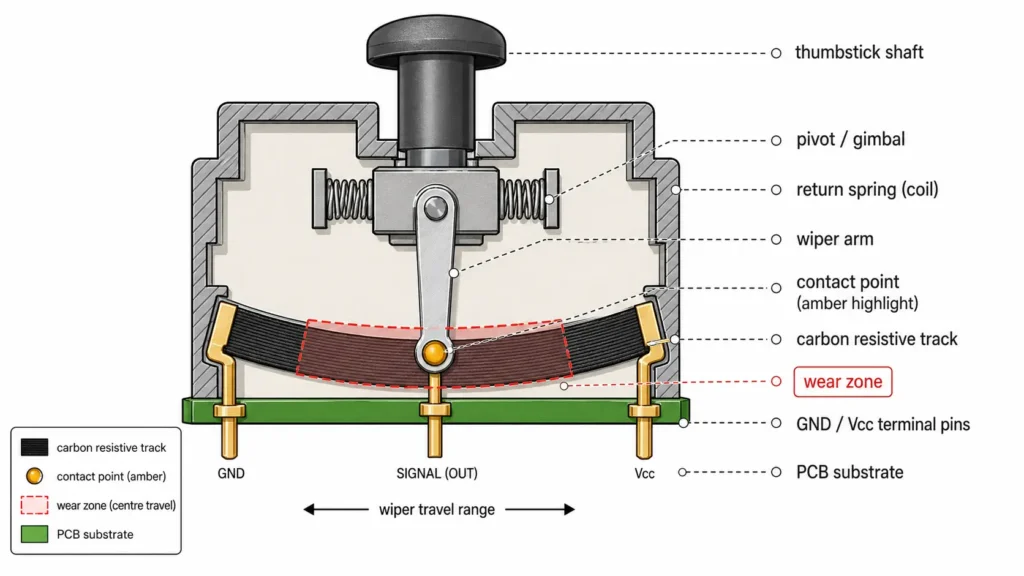
Stick drift happens because almost every controller manufactured in the last decade, including the DualSense and Xbox Series X|S pad, uses a resistive potentiometer to read analog stick position.
There’s a physical contact wiper moving across a carbon-coated resistive track inside the module. Every stick input physically wears that track down, micron by micron. Eventually, the worn area misreads as a non-zero position even when the stick is centred.
According to iFixit’s engineering teardown analysis (2021), at just two hours of FPS gameplay per day, the potentiometer wipers inside PS5 DualSense and Xbox controllers can reach their rated mechanical lifespan in as little as four to seven months.
That’s not a manufacturing defect in the traditional sense; it’s a design choice that prioritizes cost over longevity, and it’s why Sony, Microsoft, and Nintendo all faced simultaneous class action lawsuits in 2021 over the same underlying mechanism.
Most people assume drift means their controller is “broken” and needs replacing. The data says otherwise: a significant portion of drift cases, particularly early-stage drift with small offset values, respond to software or cleaning interventions that cost nothing or very little.
Or maybe I should say: drift is a spectrum, not a binary. A stick resting at X=0.03 and a stick resting at X=0.40 are both “drifting,” but they need completely different responses.
How to Diagnose Your Drift Before Choosing a Fix
Before picking a method, you need to know two things: how bad the drift is numerically, and whether it’s consistent or intermittent. Guessing wastes time.
To diagnose controller drift before attempting any fix, follow these steps:
- Connect your controller via USB or Bluetooth to a Windows PC.
- Open Chrome and navigate to gamepadtester.net.
- Press any button to activate detection.
- Set the controller flat on a desk and don’t touch it.
- Watch the X and Y axis values for the affected stick for ten full seconds.
- Record the highest sustained deviation from 0.0 that you see.
- Press every button slowly to identify any unresponsive or sticky inputs.
Your drift reading determines your starting method. Values consistently below ±0.05 respond well to software deadzone adjustment and are worth addressing there first. Values between ±0.05 and ±0.15 may still respond to cleaning but are progressing toward hardware failure.
Anything consistently above ±0.15, or any value that keeps climbing over repeated test sessions, points to potentiometer wear that software and cleaning cannot permanently reverse.
READ MORE → How to use a gamepad tester online
Quick note: You don’t need a PC for this step if you’re on PS5. Sony added a built-in controller test under Settings → Accessories → Controllers → Calibrate DualSense Wireless Controller in firmware version 7.00 (2022). It’s less granular than a browser test but shows stick position visually and flags major deviations.
The 6 Methods – Ranked by How Likely They Are to Work
Here’s the thing: ranked by permanent success rate and honesty about limitations, the six methods look very different from what most guides present as equals. Cleaning doesn’t fix worn hardware. Firmware doesn’t fix debris. The ranking below reflects that.
Method 1 – Software Deadzone Adjustment (Free, Immediate, Temporary)
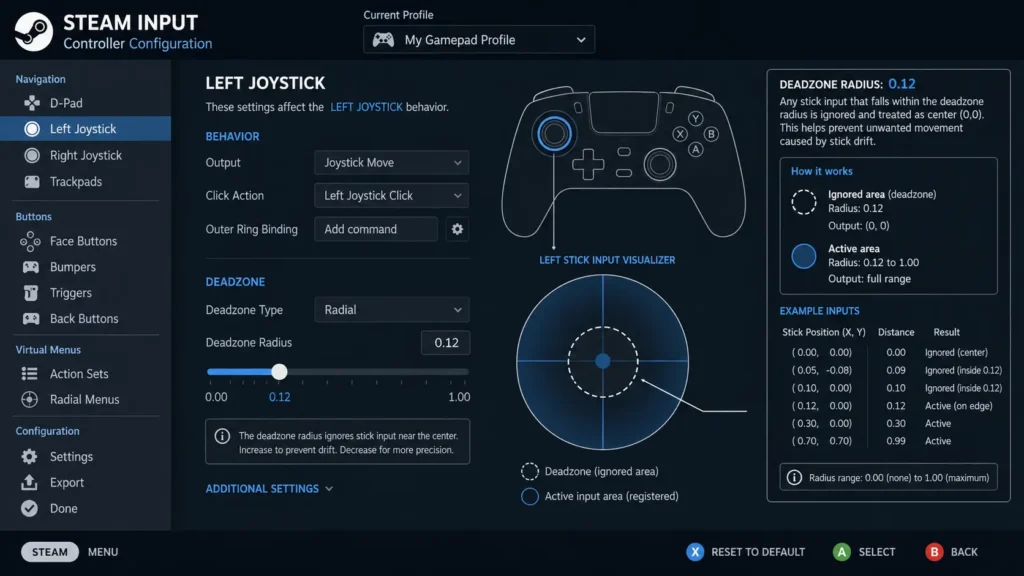
A deadzone is a configurable tolerance zone around the stick’s centre position — any input falling within that zone is treated as zero by the game engine. Increasing the deadzone radius above your measured drift value effectively silences phantom movement without touching any hardware.
On PC via Steam Input: Open Steam → Settings → Controller → Edit Layout for your game → Left Joystick (or Right) → Deadzone. Set the radius to approximately 0.05–0.08 above your measured drift floor. If your gamepad tester showed consistent drift at X=0.07, a deadzone of 0.12–0.15 absorbs it entirely.
According to Steam’s Input configuration documentation (updated 2024), deadzone adjustments apply globally across all Steam games using that controller profile you set it once, it works everywhere on that platform.
On PS5: Settings → Accessories → Controllers → Stick Sensitivity Type → Custom. Sony allows coarse adjustment here, but not the fine floating-point control Steam provides. It’s workable for moderate drift, but won’t cover edge cases that PC deadzone tuning handles easily.
Realistic success rate: Effective for drift values below ±0.10. Temporarily, the underlying wear continues, so you’ll need to revisit the deadzone setting as degradation progresses. Not a repair. A suppression.
Method 2 – Firmware Update (Free, One-Time, Underused)
Firmware-caused drift is rarer than hardware drift, but it does exist. Several DualSense owners reported the onset of phantom stick movement after PS5 system software updates in 2022–2023, later traced to calibration offset values being reset incorrectly during the update. Sony issued corrective patches.
To update DualSense firmware: Connect the controller via USB cable to your PS5 → Settings → Accessories → Controllers → DualSense Wireless Controller Device Software. The update installs in under two minutes. On PC, update via the PlayStation Accessories app for Windows (available from the Microsoft Store).
What most guides skip is this: firmware updates only fix drift if it appeared suddenly after a system update, and the axis offset is consistent and non-progressive. If your drift has been building gradually over months of play, it’s mechanical, l and no firmware update will address it. Trying this first costs nothing, but don’t stop here if the problem pre-dates your last system update.
Realistic success rate for non-update-triggered drift: low. For update-triggered sudden drift onset: meaningful.
Method 3 – Physical Cleaning With Contact Cleaner Spray (£5–$8, Moderate Effort)
Debris and oxidation around the potentiometer contact point can cause erratic stick readings that mimic mechanical wear. Compressed air rarely resolves this because it doesn’t reach the contact surface contact cleaner spray, directed into the gap around the stick shaft base, can.
MG Chemicals 422B Contact Cleaner and WD-40 Contact Cleaner are both widely used for this. With the controller powered off and unplugged, hold the stick fully to one side to open the gap at its base, direct a one-second burst of cleaner into the gap, then rotate the stick through its full range twenty to thirty times to work the cleaner across the contact surface. Repeat twice. Allow full drying before powering on for a minimum of fifteen minutes.
Realistic success rate: iFixit community repair reports and hardware teardown contributors put cleaning success somewhere between 40% and 70%, but that range carries an important caveat. It’s higher for controllers under eight months old with mild drift and lower for controllers showing progressive drift over multiple months. Cleaning works on debris and oxidation. It does not rebuild a worn carbon track.
Users who’ve tried cleaning often report good results for one to four weeks before drift returns, sometimes at a higher intensity. That outcome tells you the track was worn, not just dirty.
Method 4 – Dead Stick Recalibration via Button Sequence (Free, 60 Seconds, Platform-Specific)
Both Sony and Microsoft built a hardware calibration reset into their controllers that most users never find. It forces the controller to re-baseline its zero position from scratch.
DualSense reset: Turn off the PS5 completely. Flip the controller over and use a paperclip or SIM tool to press the small recessed reset button near the L2 trigger for five seconds. Reconnect via USB and re-pair.
Xbox Series X|S reset: Hold the Bind button (top edge, near USB port) and the Xbox Guide button simultaneously for ten seconds until the controller powers off. Power it back on normally.
These sequences wipe saved pairing data and force re-initialization. They don’t recalibrate the potentiometer mechanically, but if drift appeared after a failed pairing event, a crash, or a battery drain-to-zero scenario, this can clear the incorrect saved baseline.
Success rate outside those specific scenarios is low, but it’s free and takes under a minute, so it belongs before anything more involved.
Method 5 – Disassembly and Potentiometer Replacement (£15–$25, Permanent for that Mechanism)
Standard joystick modules use replaceable potentiometers that cost roughly £2–$5 individually on component marketplaces like LCSC or Mouser. The problem is soldering. The potentiometers in DualSense and Xbox Series controllers are through-hole components on the PCB.
Replacing them requires desoldering the old module, cleaning the pads, and soldering in the new part without bridging adjacent components or overheating the board.
iFixit’s PS5 DualSense teardown guide (freely available at ifixit.com, updated 2023) is the most thorough disassembly walkthrough available. The difficulty rating there is “Moderate,” which in practice means manageable for anyone who has soldered before, but risky if you haven’t. A cold solder joint on the stick PCB can create worse symptoms than the original drift.
This is the right call if you have soldering experience, want to keep using the original controller form factor, and have measured drift above ±0.15 consistently.
It’s also worth noting that a standard potentiometer replacement does not eliminate the underlying wear mechanism; the same failure mode will recur in months to years, depending on play intensity. For a permanent solution, Method 6 addresses that directly.
LEARN MORE → iFixit PS5 DualSense Teardown
Method 6 – Hall Effect Module Upgrade (£15–$30, Mechanically Permanent)
Hall effect joystick modules eliminate the potentiometer. Instead of a carbon wiper on a resistive track, they use a magnetic field and a non-contact sensor to read stick position. There’s no physical contact between the moving parts and the sensing element, which means the wear mechanism that causes drift simply doesn’t exist in the same way.
Hall effect deadzone vs. standard deadzone: Hall effect modules are not drift-free at a hardware level; they still have a small calibration deadzone, typically 0.02–0.04, but because the sensor element doesn’t wear, that baseline stays stable over the product’s lifespan rather than creeping upward as the hardware ages.
GuliKit’s Electromagnetic Module for PS5 DualSense is the most cited aftermarket option and is widely available at approximately $18–$22 USD. GuliKit and Extremerate both produce Hall-effect replacements for Xbox Series X|S controllers in the same price range.
Installation requires the same teardown as Method 5 but replaces the entire joystick module rather than just the potentiometer. No soldering required for most Hall effect upgrade kits, since they use snap-in connector designs.
GuliKit Hall effect vs. standard potentiometer replacement: GuliKit is better suited for any user who plays more than two hours daily and wants a fix that won’t need repeating, because the non-contact sensor doesn’t degrade under normal use.
Standard potentiometer replacement works better if you need the lowest possible cost right now and play casually, since it costs £2–$5 in parts versus £15–$22 for GuliKit. The key difference is longevity: potentiometer replacements reset the clock; Hall effect upgrades change the mechanism entirely.
Look, if you’re two months past warranty and your drift is measurably above ±0.10 and still climbing on retests, here’s what actually works: skip cleaning entirely and go straight to Hall effect. The cleaning window has already passed. You’ll spend £6 on contact cleaner, get four weeks of relief, and be back here ordering the GuliKit anyway.
Quick Comparison
| Method | Best For | Key Benefit | Limitation |
| Deadzone adjustment | Drift below ±0.10, PC gamers | Free, immediate, no disassembly | Temporary; doesn’t stop degradation |
| Firmware update | Sudden drift after system update | Free, one-time | Useless for mechanical wear |
| Contact cleaner | Early drift, controller under 8 months old | Cheap, no disassembly | 40–70% success; temporary on worn hardware |
| Button sequence reset | Drift after a crash or a dead battery | Free, 60 seconds | Drift after a crash or a dead battery |
| Potentiometer swap | Confirmed wear, have soldering experience | Cheap parts (£2–$5) | The same mechanism will wear again |
| Hall effect upgrade | Progressive drift, heavy daily play | Eliminates the wear mechanism | Eliminates the wear mechanism |
READ MORE → Hall effect vs potentiometer guide
One Honest Note on Success Rates
I’ve seen conflicting data across repair communities on cleaning success rates. iFixit contributors report 40–70%, but some hardware teardown specialists push that lower for controllers already past eight months of heavy daily use.
My read: the 40–70% figure is probably accurate for the full population of “drifting controllers,” but if your controller has been drifting progressively for more than six weeks, you’re well below the median of that range. Treat cleaning as a diagnostic step, not a confident fix.
Some repair guides argue that any fix short of replacing the module is a waste of time. That’s valid if your drift is already severe and you’re a daily competitive player.
But if your drift is mild and you’re on a tight budget, a deadzone adjustment plus a cleaning attempt can give you weeks to months of playable sessions while you save up for the hardware fix. Both positions are defensible; it depends entirely on your situation.
LEARN MORE → iFixit Engineering Analysis 2021
Frequently Asked Questions
Q: What’s the best way to fix PS5 DualSense stick drift without opening the controller?
A: Start with a deadzone adjustment in PS5 settings or Steam Input, then try contact cleaner spray directed into the stick base. These two steps together resolve mild drift in a meaningful portion of cases without disassembly.
Q: How do I know if my controller drift is a software issue or a hardware issue?
A: Firmware-caused drift typically appears suddenly after a console update and affects multiple axes equally. Hardware drift from potentiometer wear builds gradually over weeks and often worsens during the play session as the controller warms up.
Q: Should I buy a new controller or repair my existing one for stick drift?
A: At $18–$22, a Hall effect module upgrade is roughly 25–30% of the new controller cost and eliminates the wear mechanism. New first-party controllers use the same potentiometer design and will drift again. Repair is the better value for most users.
Q: Why does stick drift get worse during long play sessions?
A: Potentiometers are heat-sensitive. As the controller warms up during extended use, the resistance properties of the worn carbon track change slightly — this causes the resting position reading to drift further from zero than it does when the controller is cold.
Q: When should I skip cleaning and go straight to a Hall effect replacement?
A: If your browser gamepad tester shows drift consistently above ±0.15 at rest, or if your drift reading has increased noticeably on repeat tests over two to four weeks, the potentiometer wear is too far advanced for cleaning to provide meaningful relief. Go to Method 6 directly.
This guide covers PS5 DualSense and Xbox Series X|S controllers on PS5 and Windows 10/11. It does not address Nintendo Switch Joy-Con drift repair, which uses a different internal module design and a different disassembly procedure, or controller faults caused by stick hardware physically breaking from the PCB mount.