
Why Your Controller Works in Windows but Fails In-Game and the Exact Fix for Every Gamepad Type
Table of Contents
Your controller is connected. Device Manager shows no errors. Windows even played the USB detection sound. And then you launched the game, and nothing happened.
This is the most common PC controller problem and the least clearly explained because the answer isn’t a driver update, a USB port swap, or a Bluetooth re-pair.
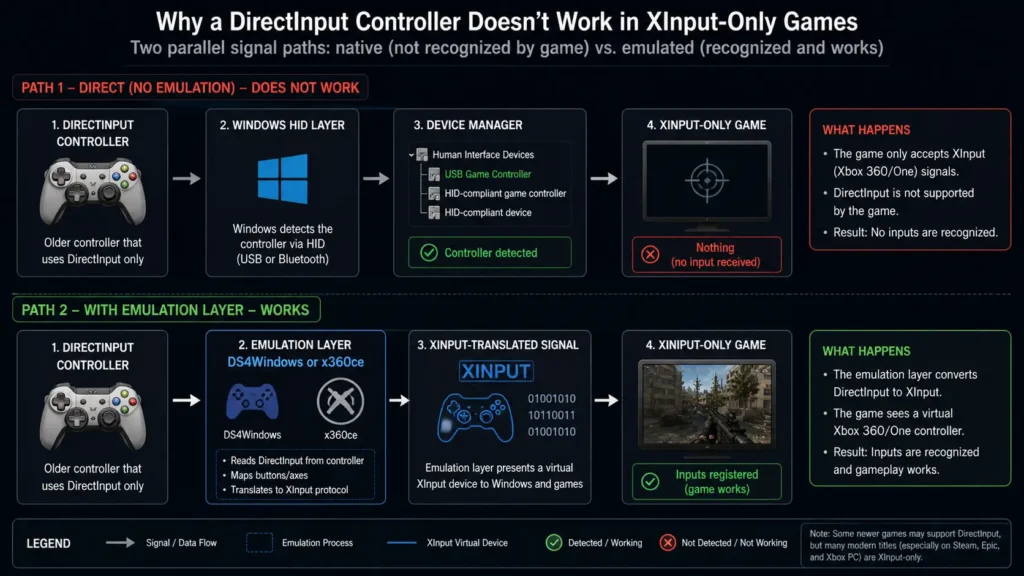
The answer is that Windows detecting your controller and a game actually receiving its inputs are two completely separate events, mediated by two completely different software APIs. Your controller speaks one language.
The game is listening for a different one. Until you bridge that gap with the right tool, the device can be perfectly functional and completely invisible to the game at the same time.
Controller Compatibility on PC
It refers to whether a gamepad’s communication protocol, either the legacy DirectInput standard or the modern XInput standard, matches what the game’s engine is actively polling for.
A controller detected at the operating system level may still fail inside a game if its protocol doesn’t match what that game expects. The majority of PC games released since 2006 only natively poll XInput, which is the Xbox controller protocol.
This works best for PS5 DualSense, PS4 DualShock 4, 8BitDo, PowerA, and generic third-party controllers on Windows 10 and 11. It won’t help if your controller has a hardware fault, uses a proprietary connection not recognised by Windows HID drivers, or requires manufacturer-specific software that this guide doesn’t cover.
XInput vs DirectInput – Why This Gap Exists and Why It Still Breaks Controllers in 2026
The split goes back further than most people realise. DirectInput was Microsoft’s original controller API, introduced in the mid-1990s as part of DirectX.
It was flexible enough to handle almost any joystick, racing wheel, or gamepad configuration, but that flexibility came at a cost. Every game had to individually map every controller’s button layout, axis count, and trigger configuration from scratch. There was no standardised button schema.
According to PCGamingWiki’s controller glossary (updated March 2026), DirectInput was officially deprecated with the release of Windows Vista and DirectX 10 in 2006.
Microsoft replaced it with XInput, a streamlined API built specifically around the Xbox 360 controller’s fixed layout: two analog sticks, two triggers, four face buttons, two bumpers, a D-pad, Start, and Back.
XInput games don’t negotiate button layout; they assume the Xbox schema and pass inputs through instantly. No per-controller mapping required.
The problem is that hardware manufacturers kept shipping DirectInput controllers for years after deprecation, and many budget and third-party manufacturers still do.
According to PCGamingWiki’s data, this makes XInput/DirectInput protocol mismatch the single most common cause of controller detection failures on Windows 10 and 11 today.
A DirectInput controller can install correctly, appear in Device Manager with no errors, and show up in the Windows calibration panel while remaining completely undetectable to any XInput-only game, which is most of the Steam catalogue.
That’s the root cause. One API reads it. The other is what the game is asking.
How to Identify Which Protocol Your Controller Is Using
Before picking a fix, you need to confirm whether your controller is XInput or DirectInput. The fastest method requires no tools beyond what Windows already includes.
To identify your controller’s protocol on Windows, follow these steps:
- Connect your controller via USB.
- Press Win + R and type “joy.cpl” to open the game controllers panel.
- If your controller appears by a specific brand name (e.g., “Wireless Controller,” “Generic USB Joystick”), it is almost certainly DirectInput.
- If it appears as “Xbox Controller” or “Xbox Compatible,” it is XInput and natively supported.
- Open Chrome and navigate to gamepadtester.net. Press any button to activate detection.
- If the tester shows your controller as “Gamepad 0” with all axes and buttons mapped, it’s detected at the browser API level; if nothing appears, the controller may need a driver obeis using an unsupported HID profile.
- Cross-reference your controller model on PCGamingWiki’s controller compatibility database for a definitive protocol confirmation.
Here’s the thing: the “joy.cpl” panel is a DirectInput panel; it shows DirectInput devices correctly and shows XInput devices only with generic Xbox labels.
If your controller shows up there with full button detail but fails in-game, that is almost always a DirectInput device being run in an XInput-only game. That single diagnosis correctly identifies the problem for the majority of non-Xbox controller compatibility cases.
READ MORE → How to use a gamepad tester online to diagnose controller issues
The Three Fix Paths – Matched to Your Controller Type
The correct fix depends on your specific controller and where you play. Using the wrong tool for your controller type wastes time and can introduce the double-input bug covered in the next section.
PS5 DualSense and PS4 DualShock 4 – Use DS4Windows or Steam Input
The PS5 DualSense connects to PC as a DirectInput HID device by default. Windows detects it, but XInput-only games see nothing, and the DualSense’s haptic feedback, adaptive triggers, and touchpad go completely unused unless you route it through the right middleware.
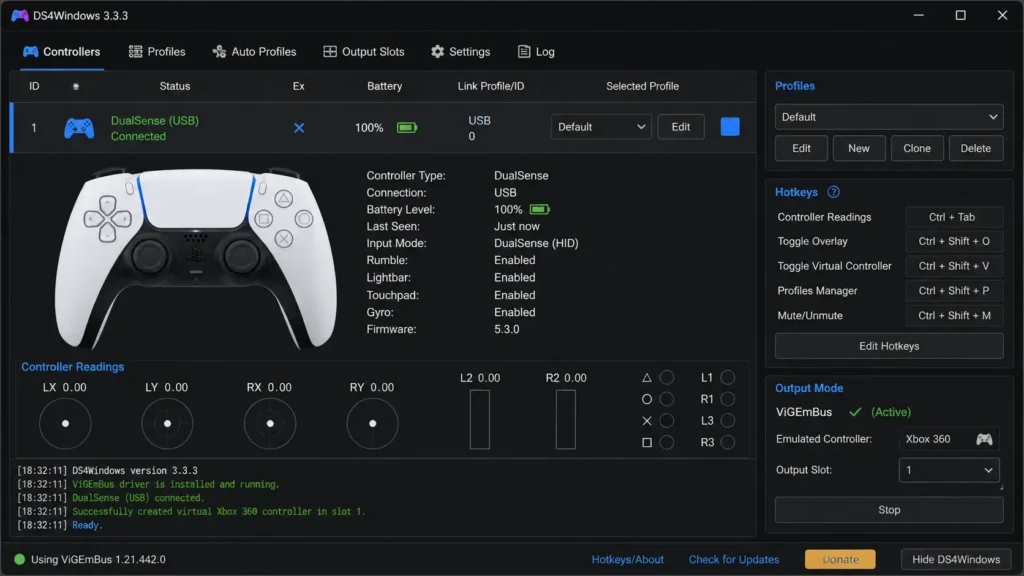
DS4Windows is the most widely used solution. It installs as a virtual XInput device to Windows and to every game, your DualSense looks exactly like an Xbox 360 pad. Navigate to “ds4windows.app“, download the latest release, install the required ViGEmBus driver when prompted, and open DS4Windows.
Your DualSense appears in the Connected Controllers tab within seconds of connection. Button mapping, lightbar colour, touchpad assignment, and deadzone control all live in the Profile editor.
Steam Input is the alternative for Steam Library games specifically. Navigate to Steam Settings → Controller → Enable Steam Input for PlayStation Controllers.
Once enabled, Steam intercepts the DualSense signal before it reaches any game and presents it as XInput automatically. No third-party download required. PlayStation button prompts appear in supported Steam games.
Or maybe I should say it this way: if you only play on Steam, Steam Input is the cleaner solution, no extra app running, no configuration file to manage. If you play outside Steam, on Game Pass, Epic Games Store, or any non-Steam launcher, DS4Windows is the correct path because it works system-wide, not per-launcher.
Generic, Budget, and Third-Party DirectInput Gamepads – Use x360ce
Controllers from manufacturers like Logitech (older models), PowerA, or no-brand budget pads purchased from Amazon or AliExpress often ship as DirectInput devices with no Xbox emulation mode. Steam Input may not detect them correctly, and DS4Windows only works with DualShock and DualSense hardware specifically.
x360ce solves this. It’s an open-source XInput emulator that places a wrapper DLL directly inside the game’s own executable folder. The game loads x360ce’s “xinput1_4.dll” instead of the real one, which translates your DirectInput controller’s signals into XInput format in real time.
Download the correct version from “x360ce.com” (match the 32-bit or 64-bit build to the game’s architecture), run the executable inside the game folder, configure your button mappings in the x360ce GUI, then launch the game normally.
Quick note: x360ce needs to be set up on a per-game basis, not once globally. Each game’s folder requires its own X360CE installation. This is by design; placing the DLL in a system directory causes conflicts.
Xbox Series X|S Controllers – No Middleware Needed, With One Exception
Xbox Series X|S controllers are native XInput devices. They install via the Windows Xbox Accessories driver, which downloads automatically on first connection, and work in every XInput game without any middleware: no DS4Windows, no x360ce, no Steam Input required for basic compatibility.
The exception is feature access. The Xbox Accessories app (available free from the Microsoft Store) exposes button remapping, hair trigger locks, stick sensitivity curves, and deadzone adjustment, but none of those affects compatibility. They’re preference settings. Compatibility works out of the box.
The Double-Input Bug – Why Your Buttons Are Registering Twice
This is the fix almost no mainstream guide covers. It matters. If you run DS4Windows and Steam Input simultaneously on the same controller, both tools attempt to present your physical controller as an XInput device at the same time.
The game receives two virtual controllers. Every button press registers twice in rapid succession. Menus scroll past two items when you press down once, shots fire in pairs, and actions activate and immediately cancel themselves. It’s maddening and non-obvious because both applications report themselves as working correctly.
The fix requires hiding the real physical controller from applications that shouldn’t see it, while leaving the virtual XInput device visible. HidHide is the standard tool for this. Install HidHide (available from GitHub, maintained by Nefarius Software Solutions), open its configuration panel, and add your physical controller to the “hidden devices” list.
DS4Windows or Steam Input continue to see the physical device through their own whitelisted access. Games and other applications see only the virtual XInput output. Double inputs stop immediately.
DS4Windows vs. Steam Input for DualSense users: DS4Windows is better suited for users who play across multiple launchers and want system-wide compatibility with full hardware feature access, including haptics and adaptive trigger control in supported titles.
Steam Input works better when your library is entirely Steam-based, because it requires no extra installation and handles button prompts natively. The key difference is scope: DS4Windows is universal; Steam Input is launcher-specific.
Quick Comparison
| Tool | Best For | Key Benefit | Limitation |
| Steam Input | DualSense / any controller in Steam games | Built into Steam; no extra install; PlayStation prompts | Steam games only; may conflict with DS4Windows |
| DS4Windows | DualSense on any launcher (Steam, Game Pass, Epic) | System-wide XInput emulation; haptic support | Requires ViGEmBus driver; use HidHide with Steam |
| x360ce | Generic / budget DirectInput pads; non-Steam games | Works per-game without system-wide changes | Per-game setup; no PlayStation-specific features |
| Xbox Accessories App | Xbox Elite / Series X|S controllers | Native; no emulation; saves profiles to controller | Xbox controllers only; no DirectInput support |
LEARN MORE → PCGamingWiki controller glossary March 2026
Look, if you’re a DualSense user running DS4Windows and also have Steam Input enabled, here’s what actually works: disable Steam Input for your controller in Steam Settings → Controller, keep DS4Windows running, and install HidHide to hide the physical device from Steam. You get system-wide compatibility, full haptic access in supported games, and zero double-input events.
I’ve Seen Conflicting Advice on This – Here’s My Read
I’ve seen conflicting recommendations across Reddit and PCGamingWiki talk pages on whether Steam Input or DS4Windows is the “correct” solution for DualSense on PC. Some community contributors argue DS4Windows is unnecessary since Steam’s native support is sufficient.
That’s valid if your entire library sits on Steam in that scenario, DS4Windows adds complexity without benefit. But the data on Game Pass and Epic Games Store compatibility is clear: Steam Input doesn’t intercept inputs for games launched outside Steam, and DS4Windows does.
My read is to use Steam Input as the default and add DS4Windows only when a non-Steam title requires it, then manage the conflict with HidHide.
Some argue that x360ce is outdated and that any modern DirectInput controller should just use Steam Input instead.
That’s partially right for controllers Steam detects, but Steam Input has inconsistent detection rates for no-brand DirectInput pads, and x360ce’s per-game DLL approach sidesteps that detection issue entirely.
For budget controllers with no manufacturer support and no Steam detection, x360ce is still the correct answer in 2026.
Anyway, the decision tree is simpler than the debate makes it appear: Xbox controller nothing needed; DualSense on Steam only Steam Input; DualSense on any launcher DS4Windows plus HIDHide; generic DirectInput pad x360ce per game.
Frequently Asked Questions
Q: Why is my PS5 controller not working on PC even though Windows detected it?
A: Windows detects it as a DirectInput HID device, but most PC games only poll XInput, the Xbox controller API. Install DS4Windows to emulate an XInput device, or enable Steam Input in Steam Settings → Controller → Enable Steam Input for PlayStation Controllers.
Q: How do I know if my controller is XInput or DirectInput?
A: Press Win + R, type joy.cpl, and open the game controllers panel. Controllers appearing as “Xbox Controller” or “Xbox Compatible” are XInput. Controllers appearing by brand name or as “Generic USB Joystick” are DirectInput and require emulation middleware for XInput-only games.
Q: Should I use DS4Windows or Steam Input for my PS5 DualSense?
A: Use Steam Input if you only play Steam games; it requires no extra installation. Use DS4Windows if you play on Game Pass, Epic, or any non-Steam launcher, since Steam Input only works inside its own launcher. Never run both simultaneously without HidHide to prevent double inputs.
Q: Why does every button press register twice in my game?
A: You’re running two XInput emulation tools at once, most commonly DS4Windows and Steam Input simultaneously. Install HidHide, add your physical controller to the hidden devices list, and keep only one emulation layer active. The double-input behaviour stops immediately.
Q: When should I use x360ce instead of DS4Windows?
A: Use x360ce for generic, budget, or third-party DirectInput gamepads that aren’t DualShock or DualSense hardware. DS4Windows only works with Sony controllers. Place x360ce in the game’s executable folder, configure button mappings once, and the game reads the controller as XInput from that point on.
This guide covers controller compatibility on Windows 10 and 11 for PS5 DualSense, PS4 DualShock 4, Xbox Series X|S, and generic DirectInput gamepads. It does not address Nintendo Switch Pro Controller configuration on PC, racing wheel DirectInput setups, flight stick mappings, or controller compatibility on Linux, macOS, or Steam Deck — each of which uses a different driver and API stack.