
How to Use a Gamepad Tester Online to Diagnose Stick Drift, Dead Buttons, and Broken Vibration
Table of Contents
If your character just started drifting on its own mid-match, or a button press failed to fire when it absolutely had to, the first question isn’t “is my controller broken?“. It’s “Is this the controller or the game?“
A browser-based gamepad tester answers that in under two minutes, with zero software to download and zero trust placed in Windows’ own calibration tool, which, if you’ve already tried it, told you almost nothing useful.
What Windows’ Built-In Panel Gets Wrong
The “Set up USB game controllers” panel reachable through Control Panel → Devices and Printers → right-click your controller shows whether your device is detected and lets you watch a rough visual of stick movement. That’s largely where it stops.
There’s no raw coordinate readout, no drift threshold data, no vibration test, and no way to distinguish a hardware fault from a driver reporting error.
Here’s the thing: a stick sitting at X=0.042, Y=0.018 at rest will look perfectly centred on Windows’ panel, but is already nudging above the default deadzone in several competitive shooters.
You’d never catch that with the built-in tool, and that’s precisely the kind of marginal drift that makes you miss shots without ever quite understanding why.
According to UK consumer group Which? (2022), 40% of Nintendo Switch users reported experiencing Joy-Con drift. iFixit’s engineering teardown analysis found that at just two hours of daily FPS play, joystick potentiometers, the internal resistive sensors that read stick position, can reach their rated lifespan in as little as four to seven months.
Drift isn’t a fluke or a manufacturing defect unique to cheaper controllers. It’s a predictable hardware degradation event, much like brake pads wearing down.
What most guides skip is the second half of that insight. Because drift is mechanical and progressive, catching it early before it’s bad enough to affect gameplay noticeably gives you more repair options and more time to decide.
How to Run a Gamepad Tester Online to Diagnose Stick Drift
To test your controller in a browser without downloading anything, follow these steps:
- Connect your controller via USB or pair it over Bluetooth through Windows Settings.
- Open Chrome, Edge, or any Chromium-based browser, not Firefox, for vibration tests.
- Navigate to the online gamepad tester.
- Press any button on your controller to activate detection.
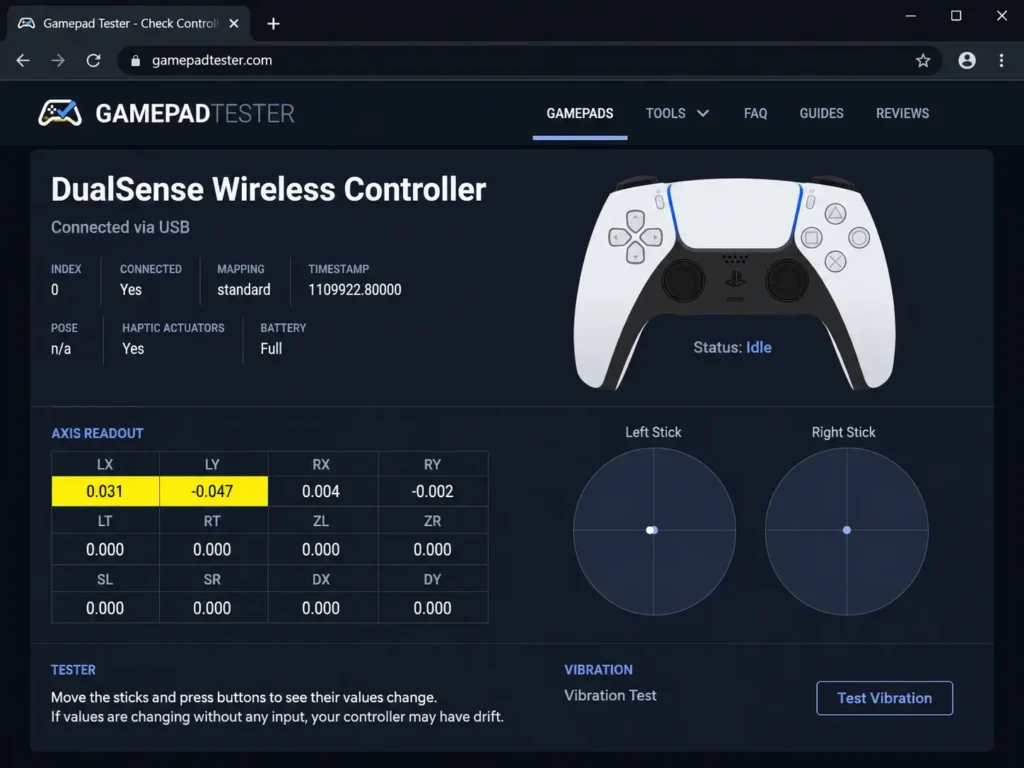
- Watch the analog stick indicators at rest. Any movement away from the centre point means drift.
- Press every button individually and confirm each one highlights correctly on screen.
- Push L2/LT and R2/RT to their full travel depth and verify the trigger axis reaches 1.0.
- Click the vibration test button and confirm that both rumble motors respond.
The step nearly every guide omits: once the initial test loads, put your controller flat on a desk and don’t touch it. Watch the stick coordinate readout for a full ten seconds.
If the X or Y value drifts away from 0.0 on its own, even slowly, that confirms the potentiometer is wearing out. It’s not a Windows driver issue. It won’t self-correct.
READ MORE → How to fix PS5 DualSense stick drift
Three Free Browser Tools Compared
Not all browser gamepad testers are built the same. They use the same underlying Web Gamepad API but differ significantly in what they display and how they visualise drift over time.
Gamepadtester.net vs. gpadtester.com vs. hardwaretester.com/gamepad:
Gamepadtester.net is best for a quick button-and-axis check because it loads almost instantly and clearly shows raw floating-point axis values.
Gpadtester.com works better when you want a visual heatmap of stick position over time rather than a single-moment snapshot.
Hardwaretester.com/gamepad is the strongest option for vibration motor testing specifically, because it lets you trigger the left and right motors independently.
The key difference is that data depth gpadtester.com shows drift patterns, not just where the stick is right now.
Quick Comparison
| Tool | Best For | Key Benefit | Limitation |
| gamepadtester.net | Fast button and axis check | Instant load; clean raw axis readout | No drift history or heatmap |
| gpadtester.com | Diagnosing intermittent or creeping drift | Visual heatmap of stick position over time | Slightly slower initial load |
| hardwaretester.com/gamepad | Vibration motor fault diagnosis | Tests the left & right motors independently | Fewer granular input details |
READ MORE → Controller repair tools and kits
Some users argue that you only need one tool and that gamepadtester.net is sufficient for everything. That’s valid if you just want a quick pass/fail result.
But if you’re trying to tell the difference between a stick that occasionally drifts and one that’s actively degrading, gpadtester.com’s heatmap gives you temporal data you can use to run the test for 60 seconds and see whether the drift zone is static or expanding, which is a meaningfully different diagnosis.
Reading the Numbers – What the Stick Data Actually Means
Stick drift occurs when a controller’s analog stick registers movement without any physical input from the player. According to iFixit’s potentiometer teardown analysis, this happens because the carbon contact layer inside the resistive sensor wears away unevenly, causing the sensor to misread the resting position.
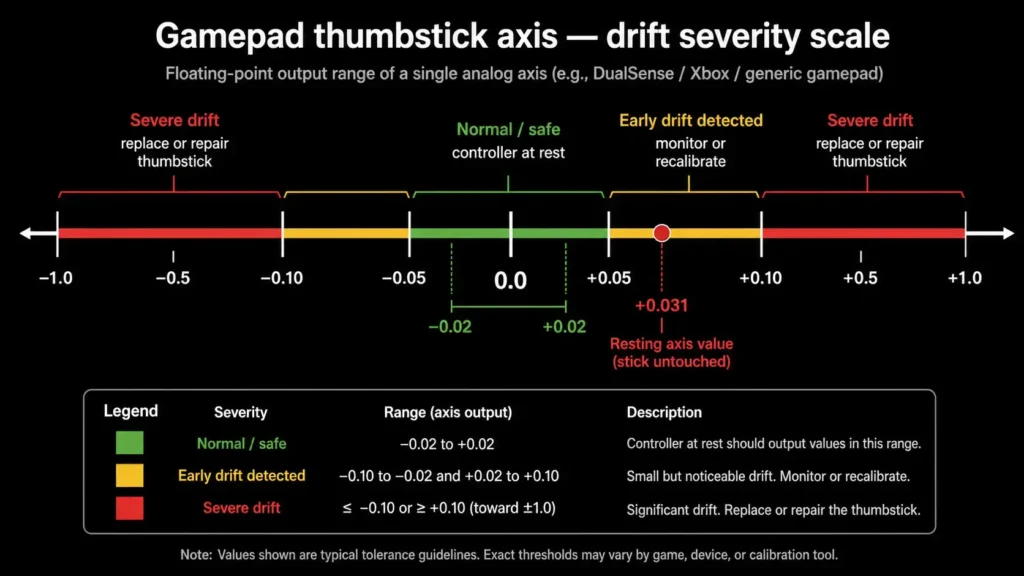
A browser gamepad tester makes this visible as a non-zero X or Y axis value when the stick is completely untouched, and in practice, anything consistently above ±0.05 starts to create perceptible in-game movement in fast-paced games.
Most gamepad testers display axis values as floating-point numbers ranging from −1.0 to 1.0. According to the W3C Gamepad API specification, a value of exactly 0.0 represents the geometric centre of the stick’s physical range.
New controllers in good condition typically rest between ±0.01 and ±0.02 at idle. Values consistently sitting above ±0.05, especially if you watch them creep higher during a ten-minute test session, point to genuine hardware degradation rather than a software miscalibration that could be fixed from a settings menu.
I’ve seen conflicting data on what actually counts as the “actionable” replacement threshold across different games and genres. Some sources put the alert point at ±0.05; others argue ±0.10 is fine for casual play.
My read: ±0.05 is the point where drift is measurable and confirmed, but it becomes genuinely disruptive in competitive shooters around ±0.08 to ±0.10. Use ±0.05 as your “watch carefully” threshold, not your “replace immediately” threshold.
What to Do After the Test Confirms Stick Drift
Once a gamepad tester confirms stick drift, there are three responses in escalating order of cost and permanence: apply a software deadzone workaround, clean the potentiometer with contact cleaner spray, or replace the stick module entirely.
According to Steam’s Input settings documentation (updated 2024), Steam Input allows per-game deadzone adjustment that can suppress drift values below a configurable threshold, useful as an immediate temporary fix while you evaluate the hardware situation.
Software fix (free, immediate): In Steam, open Big Picture Mode or go to Steam Settings → Controller → Edit Layout for your game → Left/Right Joystick → Deadzone. Set the deadzone radius slightly above your measured drift value from the browser test.
If your tester showed X=0.07 at rest, a deadzone of 0.10 to 0.12 will absorb it entirely. Your thumbstick will feel slightly less responsive at the centre, but the phantom movement disappears.
Or maybe I should say: the deadzone fix buys time. It doesn’t slow the potentiometer’s degradation.
If your drift reading doubles over the next two weeks, run the browser test again to check the hardware is actively failing, and you’ll find yourself chasing the deadzone upward until it starts eating into intentionally small movements.
Hardware cleaning (cheap, moderate effort): A short burst of WD-40 Contact Cleaner or MG Chemicals 422B, directed into the base of the stick module through the gap around the shaft without full disassembly, can temporarily restore cleaner electrical contact inside the potentiometer.
Some users report three to six months of improvement; others see no measurable change after a week. The outcome depends heavily on how far the carbon layer has already degraded. It’s worth trying at roughly £5–$8 before anything more involved.
Replacement or Hall effect upgrade (definitive fix): For a PS5 DualSense, Hall effect stick replacement modules from GuliKit, specifically the Electromagnetic Module for DualSense, cost approximately $15–$20 and eliminate potentiometer drift permanently by replacing the resistive sensor with a magnetic one that has no contact layer to wear out.
Similar Hall-effect upgrades exist for Xbox Series controllers from vendors including GULIKIT and Extremerate. Given that a new first-party controller costs $60–$70, a $20 module replacement is the economically rational call once drift is confirmed and progressing.
LEARN MORE → iFixit DualSense teardown
Why Chrome Works and Firefox Silently Blocks the Vibration Test
Look, if you’re sitting in Firefox, wondering why the vibration test does nothing when you click it, here’s what actually works:
Chrome fully implements the Web Gamepad API, including the hapticActuators interface, which is the browser-side call that vibration tests rely on.
Firefox supports basic button and axis input reading but has deliberately not shipped full haptic actuator support as of early 2026, meaning any browser-based rumble test will silently fail.
This isn’t a bug in the testing tool. It’s a documented API implementation gap. The button and stick tests will work fine in Firefox; you’ll get accurate axis readouts and button states, but the vibration test will show no response regardless of whether your motors are working or not.
If you’re specifically trying to diagnose whether a rumble motor has failed, Firefox gives you a false all-clear, which is worse than giving you an error.
Chrome, Edge, Brave, and Opera all handle the full API correctly. For vibration diagnosis, those are your only reliable options right now.
Quick note: This guide covers USB and Bluetooth controllers paired to Windows 10 and 11. It does not address iOS or Android controller Bluetooth pairing, which operates under different API constraints and browser support matrices.
LEARN MORE → W3C Gamepad API specification
Frequently Asked Questions
Q: What’s the best free gamepad tester online?
A: Gamepadtester.net is the fastest for a quick button and axis check. Gpadtester.com is better for tracking drift over time with a heatmap. Hardwaretester.com/gamepad is the strongest option specifically for vibration motor testing.
Q: How do I test for stick drift without downloading software?
A: Open Chrome and go to gamepadtester.net. Connect your controller, press any button to activate detection, then set the controller flat on a desk and watch the stick coordinate readout for ten seconds. If X or Y moves away from zero without you touching it, stick drift is confirmed.
Q: Should I replace my controller if drift is confirmed?
A: Not immediately. Try a Steam Input deadzone adjustment as a temporary fix first. If drift progresses past ±0.10, or the deadzone workaround stops keeping up. Hall-effect stick modules at $15–$20 offer a permanent hardware fix at a fraction of the full controller replacement cost.
Q: Why does the vibration test not work in my browser?
A: Firefox does not fully implement the haptic actuator portion of the Web Gamepad API. Use Chrome, Edge, or any other Chromium-based browser to reliably run a vibration test.
Q: When should I clean versus replace a drifting stick?
A: Try contact cleaner spray if drift readings are below ±0.10 and the controller is under twelve months old. If drift is consistently above ±0.15, progressing quickly on retests, or the controller has seen 18+ months of heavy daily use, a Hall-effect module upgrade or full replacement is the more cost-effective option.
This guide covers PC gamepad diagnosis via browser on Windows 10 and 11. It does not address console-side controller testing through PS5 or Xbox system menus, or mobile Bluetooth controller pairing on Android and iOS.