
How to Actually Use the Gamepad API in JavaScript – Polling Loop, Button State, and the Gotchas MDN Doesn’t Lead With
Table of Contents
You called navigator.getGamepads() in the console, got a non-null result, wired it into your game loop, and nothing updates. The controller is connected. The browser detects it. Your code looks correct. And it’s still not working.
The reason isn’t a bug in your code. It’s a deliberate browser security policy that every Gamepad API tutorial underexplains, combined with a polling pattern that most developers don’t reach for naturally because the rest of the Web API surface is event-driven.
This guide covers the actual implementation, working code, three specific gotchas, the Firefox axis discrepancy, and the button edge detection pattern that zero top-ranking tutorials demonstrate.
The Gamepad API is a browser interface that gives JavaScript programs access to gamepad input buttons, analog axes, and vibration actuators from connected controllers via navigator.getGamepads().
Unlike keyboard and mouse APIs, it does not fire events on state changes; it requires continuous polling inside a requestAnimationFrame loop to read the current instantaneous input state.
This guide covers Chrome, Edge, and Firefox on Windows and macOS using standard XInput-compatible controllers. It does not address Safari’s partial Gamepad API implementation (which omits vibration entirely and has known axis normalisation differences), or mobile browser gamepad support, which varies significantly by platform and is not production-reliable as of April 2026.
The User Gesture Gate – Why Your First Implementation Silently Fails
This is the first thing every tutorial should say, and almost none of them do.
According to the W3C Gamepad Specification (Working Draft, July 2025), getGamepads() is required to return an empty list until a “gamepad user gesture” has been detected on the page.
A gamepad user gesture is defined as a button press or axis movement on the connected controller while the page is in focus. This is a fingerprinting mitigation measure that prevents pages from silently reading controller presence without any user interaction.
The practical consequence: calling navigator.getGamepads() immediately on page load, or in a DOMContentLoaded callback, returns an empty array every time, regardless of whether a controller is physically connected.
Your console test worked because you ran it manually after the page was already loaded, and you’d likely already pressed a button. Your game loop runs before any gesture has occurred, so it reads nothing.
The correct solution is two-part: listen for the gamepadconnected event to know when a controller is activated (which itself requires a button press to fire), then start your polling loop from inside that handler. Never start the loop unconditionally on page load.
// CORRECT: Start polling only after gamepadconnected fires
window.addEventListener("gamepadconnected", (event) => {
  console.log(`Controller connected: ${event.gamepad.id}`);
  startGameLoop();
});

window.addEventListener("gamepaddisconnected", (event) => {
  console.log(`Controller disconnected: ${event.gamepad.id}`);
  // Stop loop or handle gracefully
});
Before writing another line of implementation, open gamepadtester.net in Chrome with your controller connected. Press any button. If the tester shows your button indices and axis values updating in real time, your controller hardware is outputting correctly, and the API will work. The user gesture has now been made, and you can call getGamepads() successfully in that tab. This confirms the hardware side before you touch any code.
READ MORE → How to use gamepadtester.net to verify button and axis output
Here’s the thing: gamepadconnected doesn’t fire on connection, it fires on the first input gesture after connection. Plug in the controller, load the page, and nothing happens until the player presses a button.
That’s by design, and it means your “controller detected” state and “controller ready to read” state are different moments.
The Polling Loop – How to Read Input Correctly Every Frame
To implement a working Gamepad API polling loop, follow these steps:
- Listen for gamepadconnected to confirm controller activation.
- Inside the handler, call requestAnimationFrame to start your loop.
- At the top of each frame, call navigator.getGamepads() to get the fresh snapshot.
- Index into the returned array using the gamepad’s index property.
- Read .buttons[n].pressed for digital state and .buttons[n].value for analog triggers.
- Read .axes[n] for stick position as a float from −1.0 to 1.0.
- Store the full button state array at the end of each frame for edge detection in the next frame.
The full working polling loop:
let gamepadIndex = null;
let previousButtonStates = [];

window.addEventListener("gamepadconnected", (event) => {
  gamepadIndex = event.gamepad.index;
  previousButtonStates = new Array(event.gamepad.buttons.length).fill(false);
  requestAnimationFrame(gameLoop);
});

function gameLoop() {
  const gamepads = navigator.getGamepads();
  const gamepad = gamepads[gamepadIndex];

  if (!gamepad) {
    requestAnimationFrame(gameLoop);
    return;
  }

  // Read axes with deadzone applied
  const leftX = applyDeadzone(gamepad.axes[0], 0.1);
  const leftY = applyDeadzone(gamepad.axes[1], 0.1);

  // Button edge detection — "just pressed this frame"
  gamepad.buttons.forEach((button, index) => {
    const wasPressed = previousButtonStates[index];
    const isPressed = button.pressed;

    if (isPressed && !wasPressed) {
      onButtonDown(index); // fires once per press, not every frame
    }
    if (!isPressed && wasPressed) {
      onButtonUp(index);
    }
    previousButtonStates[index] = isPressed;
  });

  requestAnimationFrame(gameLoop);
}

function applyDeadzone(value, threshold) {
  return Math.abs(value) < threshold ? 0 : value;
}
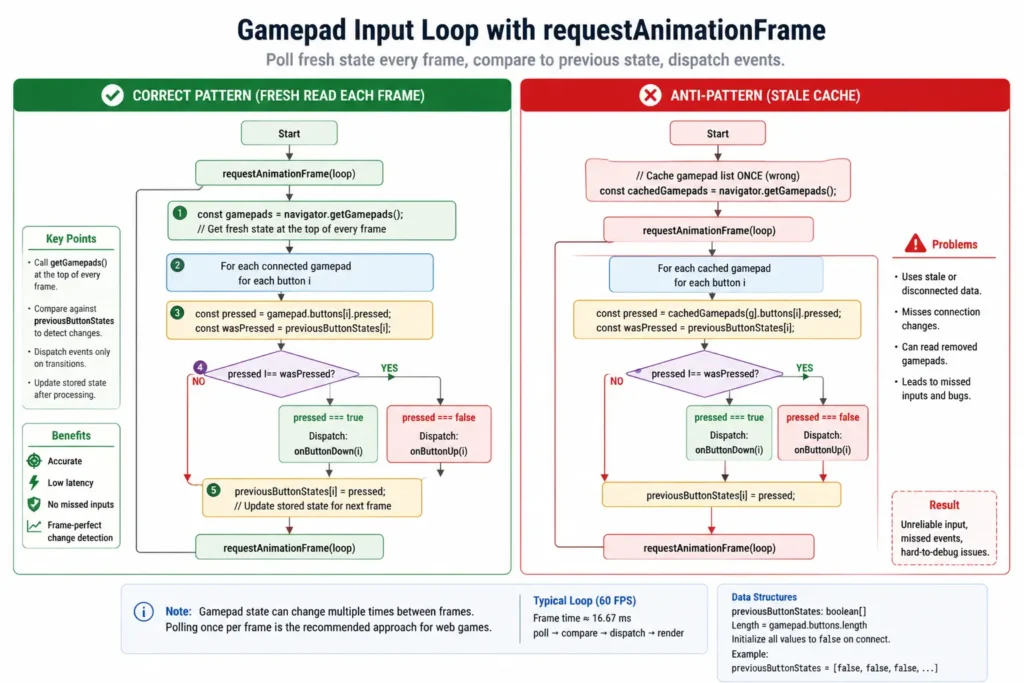
The getGamepads() call must happen inside the requestAnimationFrame callback, not cached outside it. The returned snapshot is not a live object; it represents the state at the moment of the call. Reading from a cached reference gives you stale data from a previous frame.
Or maybe I should say: think of getGamepads() as taking a photograph of the controller state, not opening a live camera feed. Every frame, you take a new photograph. If you hold the photograph from frame one and read it in frame ten, you’re reading ten-frame-old input data. For a 60fps game loop, that’s 167ms of lag from a single implementation mistake.
Button Edge Detection and Deadzone – The Two Patterns Every Tutorial Skips
Button Edge Detection – One Press, Not One Press Per Frame
What most guides skip entirely on button handling: the Gamepad API’s .buttons[n].pressed is a boolean that is true for every frame that the button is held down, not just the frame it was first pressed.
If your game logic fires on .pressed === true, pressing A to jump will call your jump function at 60 times per second for as long as the player holds the button. Menu navigation fires past twelve items. A “confirm” action executes continuously.
The fix is the previous-state comparison pattern shown in the polling loop above. You store last frame’s pressed state for each button in an array, compare it against this frame’s state, and act only on the transition: isPressed && !wasPressed is a new press, !isPressed && wasPressed is a release. Exactly one event per actual button interaction, regardless of hold duration.
This pattern mirrors how keyboard event handling works under the hood: keydown fires once, then keypress repeats if you want repeat behaviour. The Gamepad API gives you only the raw state; you implement the keydown/keyup semantics yourself.
Deadzone – Numbers, Not Hand-Waving
The deadzone is a tolerance band around the stick’s resting centre position, within which all axis values should be treated as zero. Without it, analog stick drift, the slight non-zero resting offset from worn potentiometers registers as constant small inputs in your game, causing drift-induced camera movement even on a controller the player considers “fine.”
The applyDeadzone function in the loop above uses a hard radial cutoff. For production use, a scaled deadzone (which preserves analog precision outside the dead zone while eliminating values inside it) is more accurate:
function applyDeadzoneScaled(value, threshold) {
  if (Math.abs(value) < threshold) return 0;
  // Scale the output so it starts at 0 at the threshold edge
  const sign = value > 0 ? 1 : -1;
  return sign * (Math.abs(value) - threshold) / (1 - threshold);
}
A threshold of 0.10 to 0.12 is appropriate for controllers in good condition. For a controller showing measurable drift on gamepadtester.net, a resting axis value above ±0.05 matches the threshold to slightly above the observed resting offset. A threshold of 0.15 absorbs a resting offset of 0.12 with a small safety margin.
Quick note: some games apply a deadzone globally to both axes together as a circular deadzone rather than per-axis independently. A circular deadzone prevents the edge case where moving a stick diagonally produces a directional bias from per-axis clamping.
The implementation requires normalising the 2D vector rather than clamping each axis independently. The radial pattern in gamepad.js (the NickTindall GitHub library) handles this correctly and is worth referencing for production implementations.
LEARN MORE → MDN Web Docs Gamepad API reference
Firefox Axis Count Discrepancy – The Silent Cross-Browser Bug
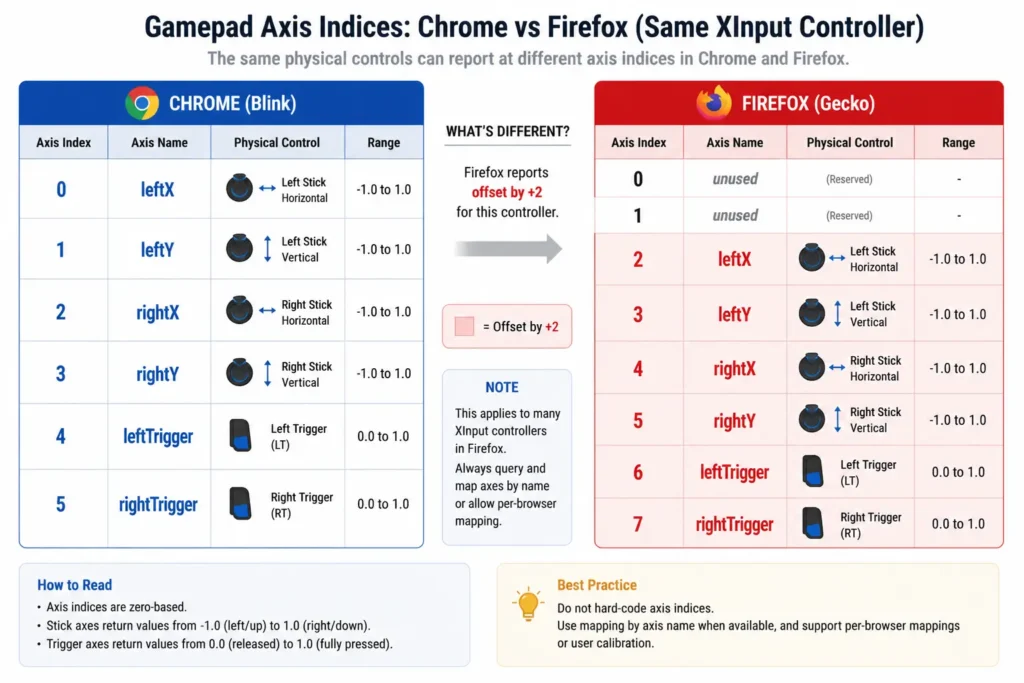
Firefox reports a different axis count from Chrome and Edge for the same physical controller, under the same connection type, with the same driver stack. Specifically, Firefox includes an additional axis entry that Chrome and Edge do not, shifting every axis index by one position for any code that assumes the Chrome axis mapping.
The practical impact: code written and tested in Chrome that reads gamepad.axes[2] for the right stick X axis will read a different axis entirely in Firefox, typically the right stick Y, shifted one position.
The game behaves correctly in Chrome, incorrectly in Firefox, and throws no error in either browser because the index is valid in both; it’s just pointing at different physical inputs.
To detect and compensate for the Firefox axis offset:
function getAxes(gamepad) {
  // Firefox adds an extra axis at index 0 on some controllers
  // Detect by checking total axis count against expected
  const isFirefox = navigator.userAgent.includes("Firefox");
  const offset = isFirefox && gamepad.axes.length > 4 ? 1 : 0;

  return {
    leftX:  gamepad.axes[0 + offset],
    leftY:  gamepad.axes[1 + offset],
    rightX: gamepad.axes[2 + offset],
    rightY: gamepad.axes[3 + offset],
  };
}
The more robust approach and the one gamepad.js uses is to normalise axis mapping against a known controller identifier string from gamepad.id rather than relying on index offsets. The id string is browser-specific in format but consistent enough to build a lookup table for XInput-standard controllers.
For a production cross-browser game, that lookup table is worth the investment. For a single-browser diagnostic tool or prototype, the offset detection above is sufficient.
I’ve seen conflicting advice in Stack Overflow threads about whether the Firefox axis count discrepancy is a bug or a spec-compliant difference in how Firefox enumerates axes for certain controller modes.
My read: it doesn’t matter for implementation purposes. The discrepancy exists, it shifts the index, and it requires a compensation code regardless of whether it’s technically intentional. The practical fix is the same either way.
Vibration – What Works, What Doesn’t, and the Browser Gap
The Gamepad API exposes vibration through the hapticActuators interface on the gamepad object. Browser support is split: Chrome and Chromium-based browsers (Edge, Brave, Opera) implement it; Firefox does not as of April 2026.
This mirrors the consumer-facing issue described in this site’s gamepad tester guide; vibration tests silently produce no output in Firefox, not because of a code error, but because the API isn’t implemented.
Vibration in Chrome (working implementation):
async function vibrate(gamepad, durationMs, weakMagnitude, strongMagnitude) {
  if (!gamepad.vibrationActuator) {
    console.warn("Vibration not supported on this gamepad/browser");
    return;
  }

  try {
    await gamepad.vibrationActuator.playEffect("dual-rumble", {
      startDelay: 0,
      duration: durationMs,
      weakMagnitude:   weakMagnitude,   // 0.0 to 1.0 — high-frequency motor
      strongMagnitude: strongMagnitude  // 0.0 to 1.0 — low-frequency motor
    });
  } catch (err) {
    // Some controllers don't support dual-rumble — handle gracefully
    console.warn("Vibration effect failed:", err);
  }
}

// Example: short impact vibration on button press
vibrate(gamepad, 150, 0.5, 1.0);
The weakMagnitude maps to the high-frequency motor (the small one) and strongMagnitude to the low-frequency motor.
For a DualSense specifically, only basic rumble is accessible through this interface on PC the LRA haptic actuator’s full capability requires the Sony haptic SDK, which is not exposed through the W3C Gamepad API.
Raw Gamepad API vs. gamepad.js library: The raw API is better suited for developers who want minimal dependencies and full control over polling logic, because it requires no external download and gives direct access to every property the spec exposes.
The gamepad.js library by Nicktindall works better for production browser games where cross-browser normalisation, circular deadzone handling, and button-pressed versus button-held event differentiation are needed out of the box, because implementing those correctly from scratch takes meaningful time, and the library handles the Firefox discrepancies internally.
The key difference is control versus convenience. The raw API is one fewer dependency, and the library is weeks of implementation time saved.
Quick Comparison
| Approach | Best For | Key Benefit | Limitation |
| Raw Gamepad API | Diagnostic tools; minimal deps; prototyping | No dependencies; full spec access | Requires manual edge detection, deadzone, Firefox compensation |
| gamepad.js (nicktindall) | Production of browser games | Cross-browser normalised; events built-in | External dependency; thin but still a dep |
| gamepadconnected only (no loop) | Controller presence detection only | Simple listener setup | Never updates after the first snapshot |
Look, if you’re building a browser game and have already hit the Firefox axis bug once, here’s what actually works: use gamepad.js for the axis normalisation and button event model, and drop back to the raw API only for vibration (since the library doesn’t abstract vibration). The two coexist cleanly because gamepad.js exposes the underlying gamepad object if you need it.
Frequently Asked Questions
Q: Why does navigator.getGamepads() return an empty array even when my controller is connected?
A: The W3C Gamepad API spec requires a “gamepad user gesture,” a button press on the controller, while the page is in focus, before getGamepads() returns data. This is a fingerprinting mitigation. Press any button on your controller, then call getGamepads() again.
Q: How do I detect a button press only once instead of every frame it’s held?
A: Store the last frame’s .pressed state for each button in an array. On each frame, compare the new state against the stored state. Fire your action only when isPressed && !wasPressed. This is button edge detection, and the raw Gamepad API requires you to implement it manually.
Q: Should I use addEventListener for gamepad input or poll with requestAnimationFrame?
A: Use requestAnimationFrame polling. The gamepadconnected and gamepaddisconnected events are the only Gamepad API events; there are no events for button presses or axis changes. All input reading requires calling getGamepads() inside a continuous requestAnimationFrame loop.
Q: Why does my controller work in Chrome, but axis values are wrong in Firefox?
A: Firefox reports an additional axis entry compared to Chrome and Edge for XInput controllers, shifting all axis indices by one position. Apply an offset to your axis index calculations when detecting Firefox via navigator.userAgent, or use a library like gamepad.js that normalises this across browsers.
Q: When should I use the gamepad.js library instead of the raw Gamepad API?
A: Use gamepad.js when building a production browser game that needs cross-browser axis normalisation, circular deadzone handling, and button-down versus button-held event differentiation out of the box. Use the raw API for diagnostic tools, single-browser implementations, or when minimising dependencies is a requirement.
This guide covers the W3C Gamepad API as implemented in Chrome, Edge, and Firefox on Windows and macOS as of April 2026. It does not address Safari’s Gamepad API implementation (which omits vibration and has separate normalisation differences), mobile browser gamepad support, or WebXR gamepad handling — those topics involve different API surfaces and browser support profiles not covered here.